

Want to show a second image when customers hover over a product on your Shopify collection pages? Or maybe you’d like to display different hover images for each variant? This guide is just for you!
Enable Hover Effect in Your Theme
- Log in to your Shopify admin panel and go to Online Store from the side menu.
- Find your active theme and click the Customize button.
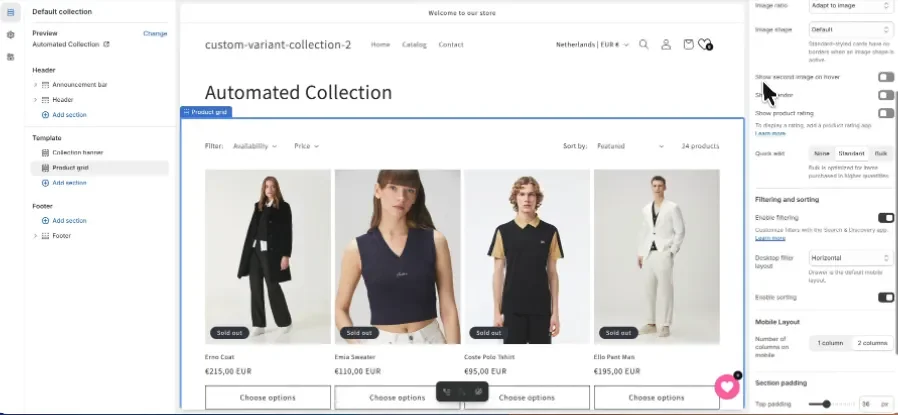
- In the theme editor, select a Collection page from the top preview bar.
- Click the Inspector icon at the top right.
- Then, click on the product grid section on the page.
- On the right settings panel, enable Show second image on hover.
- Don’t forget to click Save.
Press enter or click to view image in full size
How to Enable Hover Images for Product Variants
To show variant images correctly on hover, you can use our app:
Stamp — Variants on Collection
Stamp allows you to display product variants as separate items on collection pages. You can show variants by color, size, or material, customize them per collection, and even hide out-of-stock variants. It also ensures that hover images work properly with the right image matching.
Follow these steps to set it up:
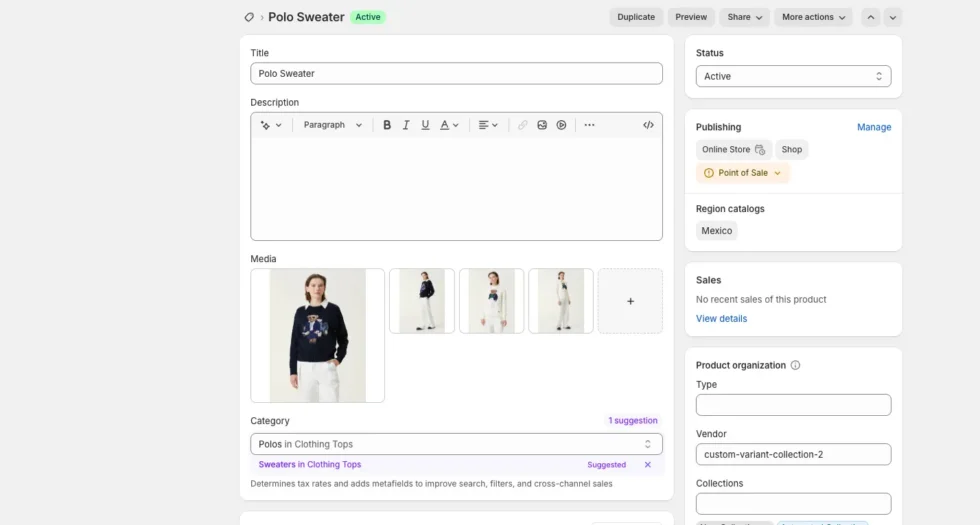
Then, go to the Media section at the top and upload those same images in the correct order.
Log in to your Shopify admin panel.
Open the Stamp — Variants on Collection app.
In the General Settings, select the collection you want to edit.
Go to the Products section in your Shopify admin.
Open a product in that collection and scroll down to the Variants section.
Upload the correct images for each variant.
❗ Important Tips:
- Image order matters!
- First two images → for the first variant
- Next two images → for the second variant
- And so on…
This ensures each variant is matched with the correct hover image.
🙏 Thanks for reading!
You can watch the full tutorial video here:
🎥 Click to watch on YouTube