Every Shopify merchant knows the frustration: a visitor lands on your store, browses your best-selling product, hesitates, and leaves without buying. Without a way to capture their intent, that potential sale is gone forever.
Enter the power of Wishlists and Back-in-Stock Alerts. By turning casual browsing into tracked intent and keeping shoppers informed when out-of-stock items return, you can recover lost revenue on autopilot.
In this guide, we’ll walk you through how to set up and maximize these high-converting features using Stamp – Wishlist & Back In Stock, helping you deliver a seamless shopping experience that ranks well in search engines and satisfies modern buyer expectations.
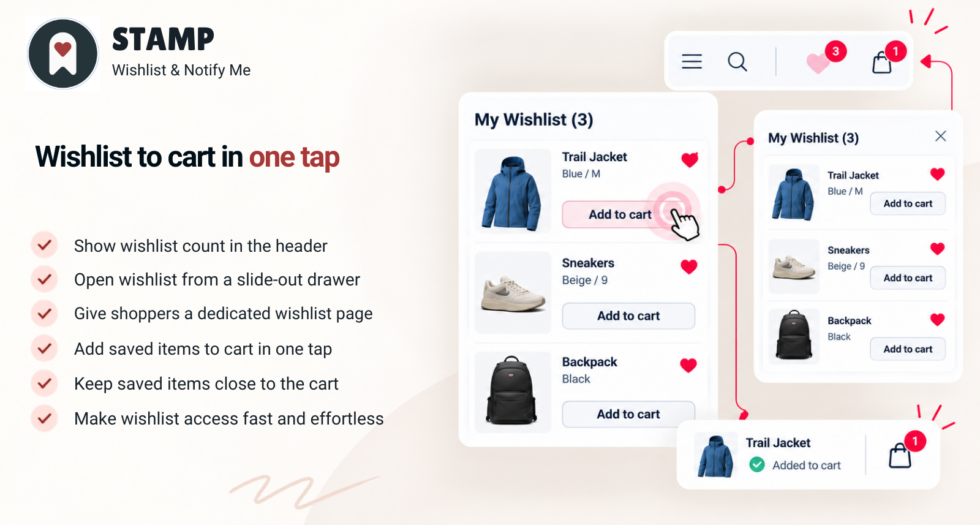
Table of Contents
Why Wishlists and Back-in-Stock Alerts Are Essential for Shopify Stores
Modern e-commerce shoppers rarely buy on their first visit. They compare prices, save items for later payday purchases, or wait for restocks.
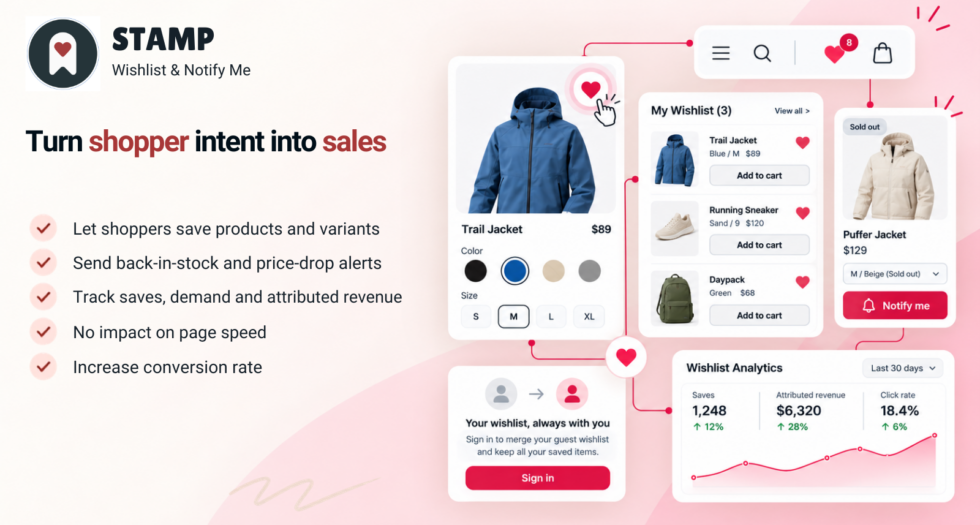
- Wishlists act as a personal shopping cart for future purchases, giving you invaluable data on which products are in demand.
- Back-in-Stock Alerts capture high-intent buyers the exact moment an inventory item is replenished, turning disappointment into immediate conversions.
- Price Drop Notifications re-engage hesitant shoppers by alerting them when an item they saved goes on sale.
Step 1: How to Set Up a Wishlist on Your Shopify Store
Adding a wishlist button to your product and collection pages takes just a few minutes with Stamp. Here is how to configure it:
- Install the App: Go to the Shopify App Store and install Stamp – Wishlist & Back In Stock.
- Enable the App Embed: In your Shopify Admin, navigate to Online Store > Themes > Customize. Under the App embeds tab, toggle on Stamp to enable the wishlist widget across your storefront instantly.
- Customize the Button Placement: Choose where you want the “Add to Wishlist” heart icon to appear (e.g., next to the Add to Cart button, on collection grid cards, or floating).
- Match Your Brand: Use the styling settings in the Stamp dashboard to adjust button colors, icon styles, and text to match your store’s unique design and branding.
Step 2: How to Configure Back-in-Stock & Out-of-Stock Notifications
Don’t let out-of-stock products become dead ends. Here is how to turn sold-out inventory into an automated revenue stream:
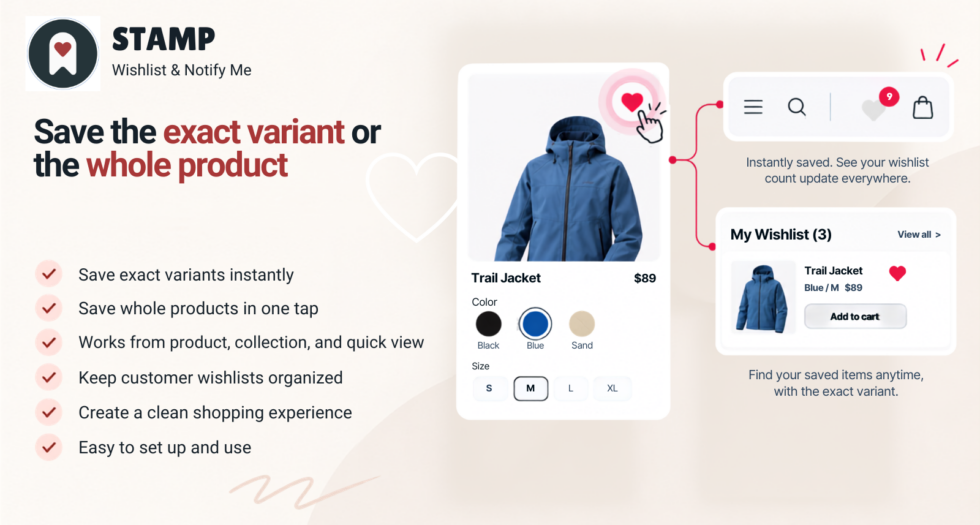
- Activate Stock Alerts: Inside the Stamp dashboard, navigate to the Back in Stock settings and toggle the feature on.
- Configure the Out-of-Stock Button: When inventory hits zero, the “Add to Cart” button automatically transforms into a clean “Email When Available” or “Notify Me” button.
- Set Up Automated Triggers: Choose whether notifications go out instantly when inventory is updated in Shopify, or configure a slight delay to manage batch restocks.
- Test the Flow: Visit a sold-out product on your storefront, enter a test email, and verify that the subscriber is successfully captured in your Stamp dashboard.
Step 3: Designing High-Converting Email Notifications
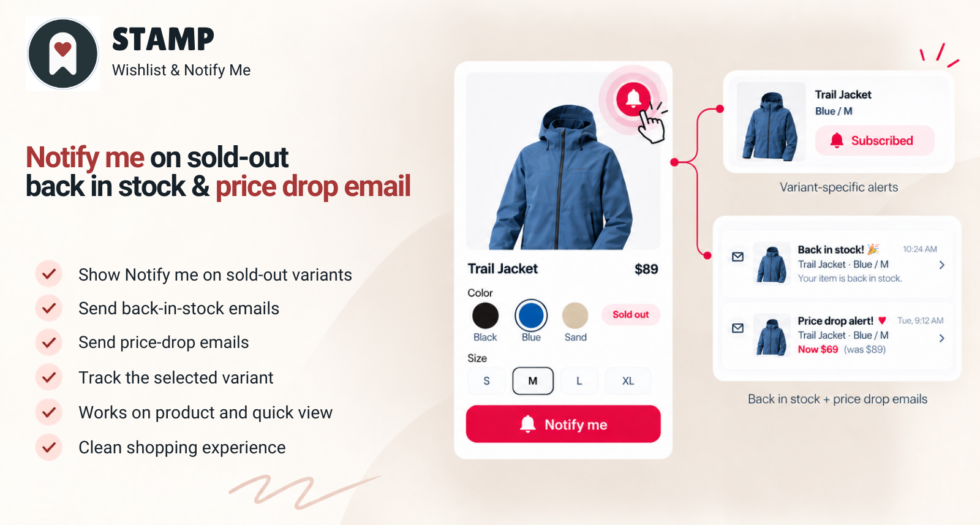
Your automated emails are some of the highest-converting messages your store will ever send. Stamp makes it easy to design branded alerts that drive clicks:
- Use Clear Call-to-Actions (CTAs): Ensure buttons like “Shop Restocked Item Now” or “View Your Wishlist” stand out with high-contrast brand colors.
- Include Dynamic Product Data: Automatically pull in the exact product image, title, variant details, and current price so customers instantly recognize what they saved.
- Personalize the Copy: Greet customers by name and mention the specific product they’ve been waiting for to build urgency.
Step 4: Maximizing Conversions with Integrations & Price Drops
To get the most out of your wishlist and back-in-stock strategy, leverage advanced triggers:
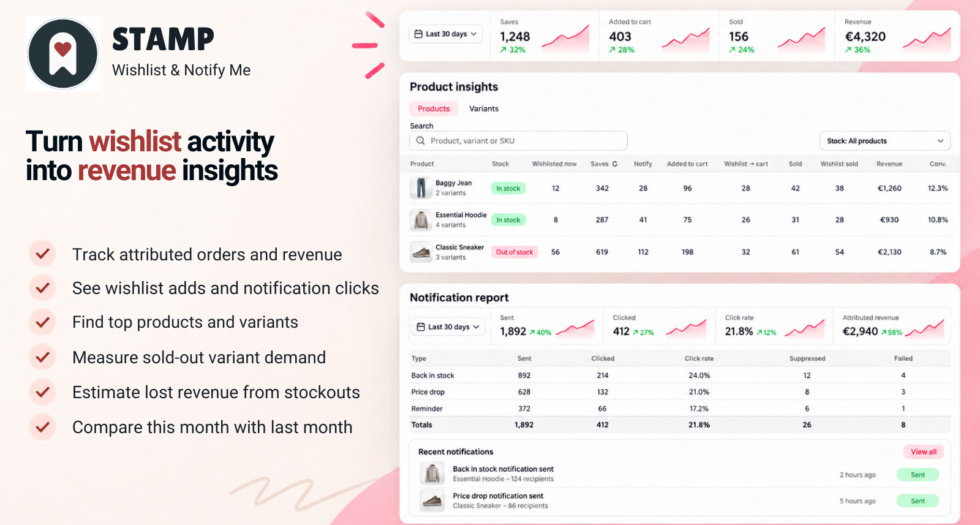
- Price Drop Alerts: Automatically notify shoppers whenever an item on their wishlist drops in price. This creates a powerful incentive for hesitant buyers to finally check out.
- Email Marketing Integrations: Connect Stamp with your favorite email marketing and CRM tools to sync wishlist and restock subscribers into targeted segments for future campaigns.
Frequently Asked Questions (FAQ)
1. How do I install Stamp on my Shopify store?
You can install Stamp directly from the Shopify App Store. Once installed, enable the app embed in your theme customizer to start collecting wishlists instantly.
2. Can customers use the wishlist without creating an account?
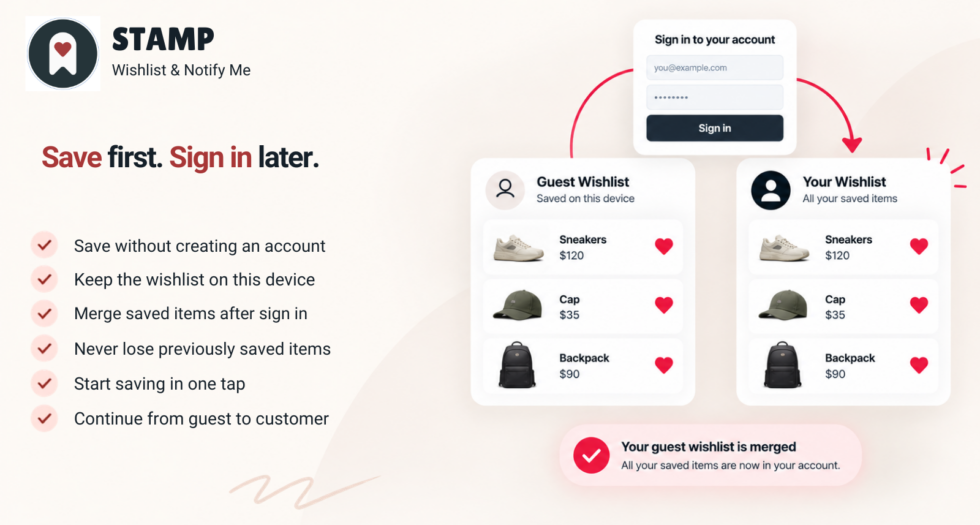
Yes! Stamp supports guest wishlists so shoppers can save items instantly without hitting friction. Their wishlist items will also sync if they decide to log in later.
3. How do back-in-stock alerts work with Shopify inventory?
When you restock an item in your Shopify inventory, Stamp automatically triggers notification emails to all customers who signed up to be alerted for that specific variant.
Want to see it in action first? Try the live demo or learn more at wishlistnotify.com.