Your shoppers shouldn’t have to click just to see the colors
A collection page full of product photos tells shoppers almost nothing about what they can actually buy. Does that jacket come in black? Is the dress available in your size? Right now, the only way to find out is to open the product page, check, go back, and repeat. Most people won’t. They’ll just leave.
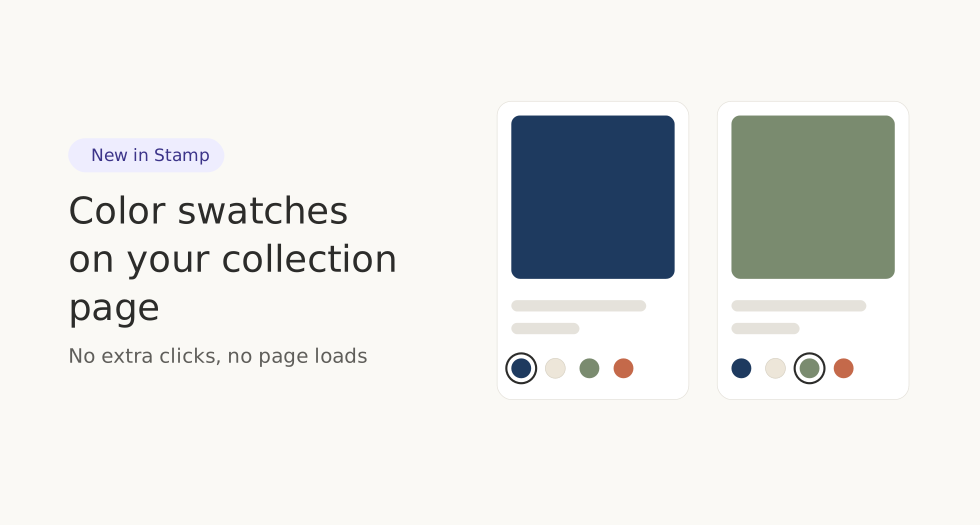
Color swatches fix that. With the new variant picker in Stamp, every color, size, and option is visible right on the collection page, and shoppers can switch between them without leaving the grid.
Swatches where the browsing actually happens
The variant picker works on your collection pages and your search results page, the two places where shoppers do the most scanning and comparing. Instead of a static grid of product photos, you get a grid that responds: click a swatch, see that variant.
It also works inside Stamp’s custom sections, so your bestsellers, recommended products, and featured collections can carry swatches too. Wherever your products appear, their options can appear with them.
Choose your own option depth
Not every store wants the same setup, so Stamp lets you decide how deep the swatches go and which options get split versus which stay as pickers.
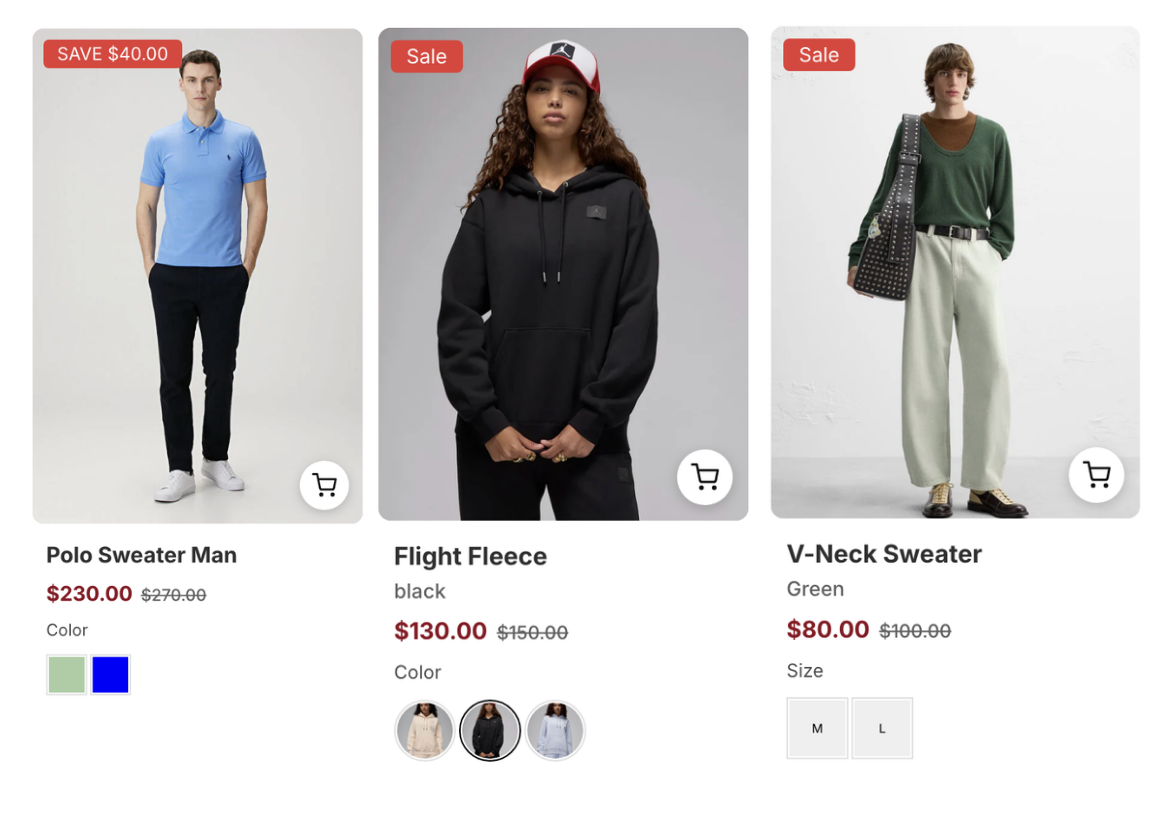
Split by one option, swatch the rest
Say you sell a t-shirt in four colors and five sizes. You can split the product by color so each color appears as its own card in the grid, then show size as a swatch underneath. Shoppers see all four colors as separate products, and under each one they pick their size directly.
This is the setup most fashion and apparel stores land on: color drives the visual scan, size gets picked in place.
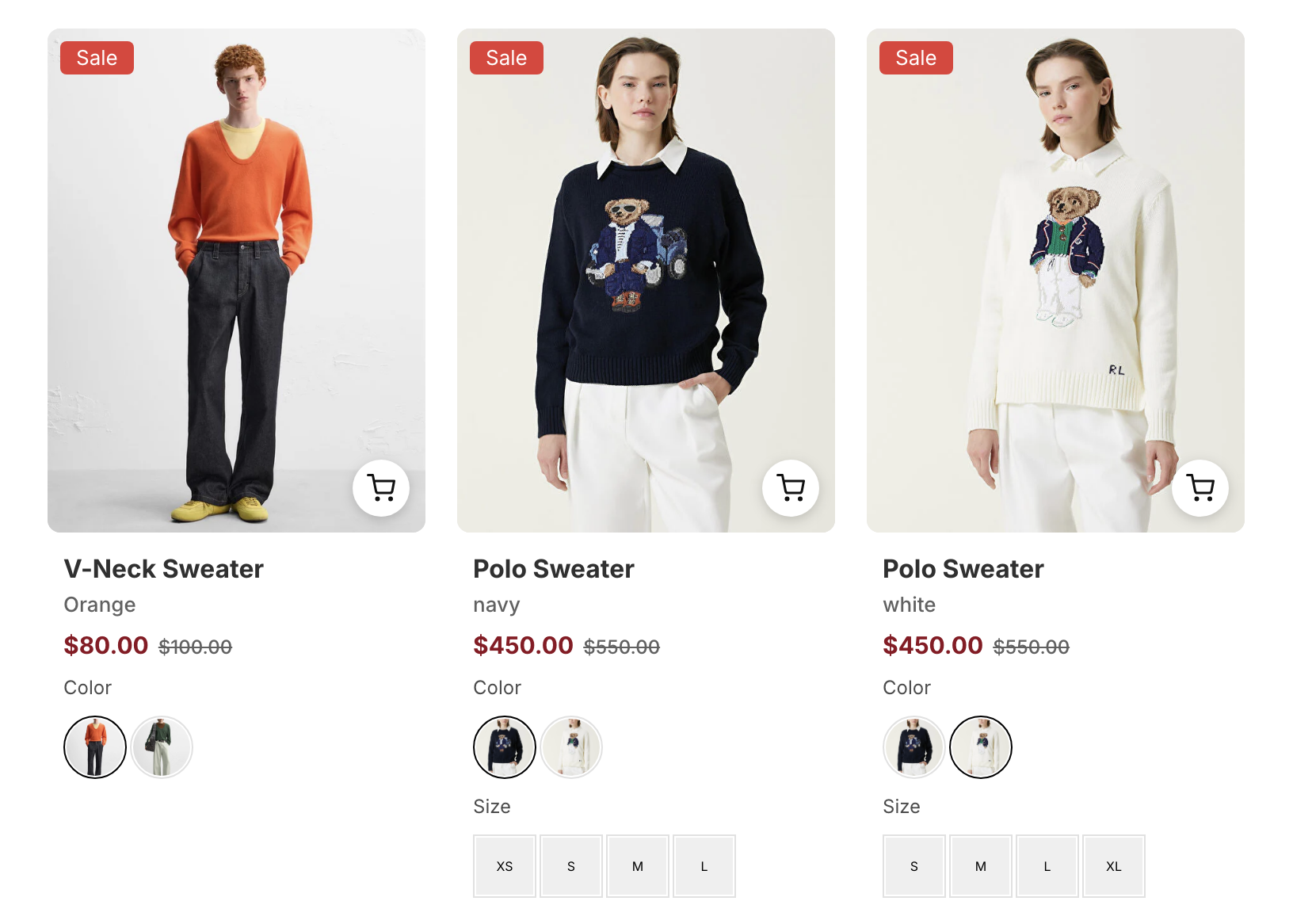
Or keep the product whole and swatch everything
Prefer one card per product? Skip the splitting and put a color swatch under each product instead. One card, all colors, no duplication. Shoppers click through the options right where they are.
Combine options into a single picker
You can also stack multiple swatches on the same product. Show color and size together, and the two stay in sync: pick navy, and the size swatch updates to show only the sizes that navy actually comes in. Pick a size, and the colors adjust to match.
No dead combinations, no clicking through to find out something is unavailable. The picker only ever offers what exists.
The whole card updates, not just the swatch
This is the part that makes swatches worth having. When a shopper clicks a swatch, the product card updates with that variant’s real data:
- The image switches to the variant’s photo, so the navy shirt actually looks navy
- The title reflects the selected variant
- The price updates, which matters when your variants aren’t all priced the same
- The add to cart button points to the right variant, so what they click is what they get
The card behaves like a mini product page, without the page load.
Make it look like your store
Swatches are only useful if they fit. You control the shape (circle or square), the size, the position, and whether they render as colors, images, or buttons. If you have a lot of options, show a few and let shoppers expand the rest.
Out of stock variants can be crossed out or hidden entirely. You can limit swatches to specific collections, so your sale collection behaves differently from your new arrivals. And if your store runs in multiple languages, you can map your translated option names so the swatches work everywhere.
Fewer clicks, more carts
The math on this is simple. Every click between a shopper and the thing they want is a chance to lose them. Swatches remove most of those clicks. Shoppers see their color, pick their size, and add to cart without ever leaving the collection page.
Better browsing, lower bounce rate, more conversions, and a store that looks like it was built by someone who thought about the details.
Ready to add swatches to your store
Color swatches are live now in Stamp – Show Variants & Swatch. Open the app, create your first swatch, choose where it shows, and watch your collection pages come to life.
No code, no theme editing, works with every major Shopify theme.