Test orders from launch week. Fraudulent orders you cancelled months ago. Hundreds of draft orders nobody ever completed. They sit in your Shopify admin, skew your order counts, and make finding real orders slower than it should be.
So you go looking for a way to clear them out, and you find that Shopify has no bulk delete button for orders. There is no checkbox and delete. There is a single order, a menu, and a confirmation, repeated once per order. And when you finally get to it, half your orders do not even offer a delete option.
This guide covers what is actually going on, which orders you can and cannot delete, and how to clear hundreds at once without paying for it.
Why Shopify makes deleting orders so difficult
Orders are financial records. Shopify treats them that way, and deletion is permanent: a deleted order disappears from your admin, your reports and your analytics, and there is no undo. That is why the platform puts guardrails around it rather than handing you a bulk delete button.
Two separate limits are at work, and it helps to keep them apart.
The first is which orders are eligible. Shopify only permits deletion of certain order types, no matter what tool you use.
The second is that there is no bulk action for it. Even for eligible orders, the admin makes you handle them one at a time.
Most people run into the second problem, work around it, and then discover the first one halfway through. Worth knowing both before you start.
Which Shopify orders can actually be deleted
Only these order types are eligible:
- Orders paid with a manual payment method, such as bank transfer, cash on delivery or money order
- Draft orders that were marked as paid
- Orders imported through the Shopify API
- Draft orders
- Test orders, if they were placed using the Bogus Gateway or Shopify Payments test mode
And this is the part that catches most merchants out: orders processed through Shopify Payments or another real payment gateway cannot be deleted. Not through the admin, not through the API, and not through any app. Shopify blocks deletion wherever it acted as the financial processor. Any tool claiming otherwise is either mistaken or talking about archiving.
There is one more prerequisite. Even an eligible order has to be cancelled or archived first. An open, active order will not show a delete option until you close it out. If you bought a shipping label for the order and never used it, void the label before deleting.
Cancel, archive and delete: three different things
These get used interchangeably in conversation and they are not the same operation.
Cancelling halts an order that is in progress. Use it for fraud, customer requests or stock problems. The order stays in your admin marked as cancelled, and it stays in your reports. Note that Shopify caps cancellations at 250 orders at a time, so larger jobs have to run in batches.
Archiving moves a completed order out of your open orders list. Nothing is lost, and the order remains fully searchable. Shopify archives paid and fulfilled orders automatically if you have that setting enabled.
Deleting removes the order from your admin permanently. It disappears from reports and analytics as well. This one is irreversible.
If your goal is simply a cleaner working view, archiving does the job and carries no risk. Reach for deletion when you genuinely need the record gone, most often with test data.
How to delete orders in Shopify manually
For a handful of orders, the native route is fine.
- In your Shopify admin, go to Orders.
- Open the order you want to remove.
- If it is still open, click More actions and choose Cancel order, or archive it instead.
- Scroll to the bottom of the cancelled or archived order and click Delete order.
- Confirm.
If there is no delete option, the order is not an eligible type. No workaround exists for that, so archive it and move on.
Where the manual route breaks down
The steps above are perfectly reasonable for five orders. At fifty they are tedious. At five hundred they are a genuine waste of a working day, and the repetition itself becomes a risk: it is easy to lose your place, delete something you meant to keep, or quietly give up halfway and leave the job half finished.
There is also no way to work from a filter. You cannot tell the admin “every cancelled order from before 2024” and act on that set. You are scrolling and clicking.
How to bulk delete Shopify orders for free
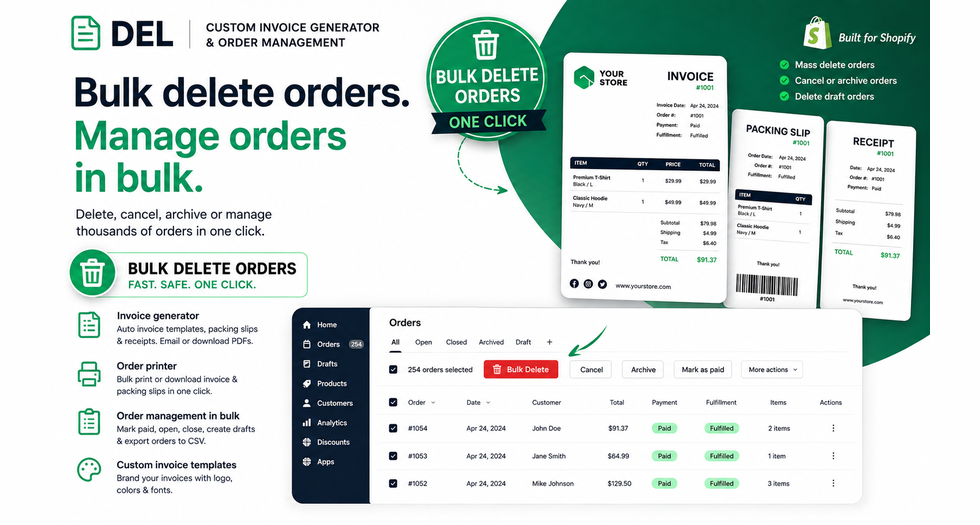
This is exactly the gap DEL: Custom Invoice Generator fills. It is completely free, with no usage limits and no paid tier.
The workflow is straightforward:
- Install the app from the Shopify App Store and open it in your admin.
- Go to the order management section and filter down to what you want to remove. You can filter by status, date range, payment status, fulfilment status and more.
- Select the matching orders.
- Choose your bulk action: delete, cancel or archive.
- Watch the job run. Progress is tracked live, you can stop it mid run, and you can download a report of exactly what happened.
Two details worth calling out. Because the job runs against a filter rather than a manual selection, you are not scrolling through pages hoping you got them all. And because you can bulk cancel or archive first, then bulk delete, the two step requirement stops being a two day project.
The same eligibility rules still apply. The app cannot delete Shopify Payments orders, because nothing can. What it does is remove the manual work from the orders you are actually allowed to delete.
Beyond deleting: the rest of the order cleanup
Deletion is usually one part of a bigger tidy up. The same app handles the neighbouring jobs in bulk:
- Bulk cancel or archive orders, working around the 250 order cap
- Bulk delete or complete draft orders, which pile up fast in B2B and POS stores
- Bulk mark orders as paid, open or closed
- Duplicate orders and create drafts in bulk
- Export filtered orders to CSV
- Bulk print or download PDF invoices and packing slips
Before you delete anything
A short checklist, because this operation does not come with an undo.
- Export first. Run a CSV export of the orders you are about to remove. If you later need a record for accounting or a dispute, you will have one.
- Check your accounting obligations. Many jurisdictions require sales records to be retained for years. Test orders are safe to remove. Real orders usually are not, regardless of what the platform permits.
- Void unused shipping labels on any order you plan to delete.
- Start with a small batch. Run twenty first, check the result, then scale up.
- Consider archiving instead. If the goal is a cleaner admin rather than permanent removal, archiving gets you there with nothing at stake.
Frequently asked questions
Can you bulk delete orders in Shopify natively?
No. The Shopify admin has no bulk delete action for orders. Each order must be cancelled or archived and then deleted individually. Bulk deletion requires an app.
Why can I not delete some of my Shopify orders?
Because they are not an eligible type. Only orders paid by manual payment method, draft orders, draft orders marked as paid, orders imported via the API, and test orders can be deleted. Orders processed through Shopify Payments or another real gateway cannot be deleted by anyone.
Does deleting an order affect my Shopify reports?
Yes. A deleted order is removed from your admin and from your sales reports and analytics. Archiving keeps the data intact and only changes which list the order appears in.
Can I recover a deleted Shopify order?
No. Deletion is permanent and there is no undo. Export the orders to CSV before deleting if you may need the record later.
How do I delete test orders in Shopify?
Test orders placed through the Bogus Gateway or Shopify Payments test mode are eligible for deletion. Cancel or archive each one first, then delete. To clear a full set of launch test orders at once, use a bulk order management app.
Is there a limit on how many orders I can cancel at once?
Yes. Shopify caps cancellations at 250 orders at a time so that refunds calculate correctly. Larger jobs need to be split into batches.
Does deleting an order notify the customer?
No. Deleting an order does not send the customer a notification. Cancelling an order can send one, depending on your settings.
What is the best free app to bulk delete Shopify orders?
DEL: Custom Invoice Generator handles bulk delete, cancel and archive for both orders and draft orders, with filters, live job tracking and downloadable reports. It is completely free with no usage limits, and it also covers PDF invoices, packing slips and CSV export.
The bottom line
Shopify’s restrictions on deleting orders are deliberate, and the eligibility rules are not something any tool can get around. What is avoidable is the manual labour: clicking through eligible orders one at a time when a filter and a bulk action would do the same job in a couple of minutes.
Export first, start small, and archive when you are unsure. Then clear the rest in one pass.