
Black Friday falls on November 27, 2026, and Cyber Monday on November 30. That gives you about six weeks to prepare. This year the BFCM shopper has two habits worth planning for.
They ask an AI assistant before they open a store. “What’s the best merino base layer under $80?” goes to ChatGPT, Gemini, Perplexity or Claude first. The assistant names a few products and links to them. If your product isn’t one it names, you never get the click.
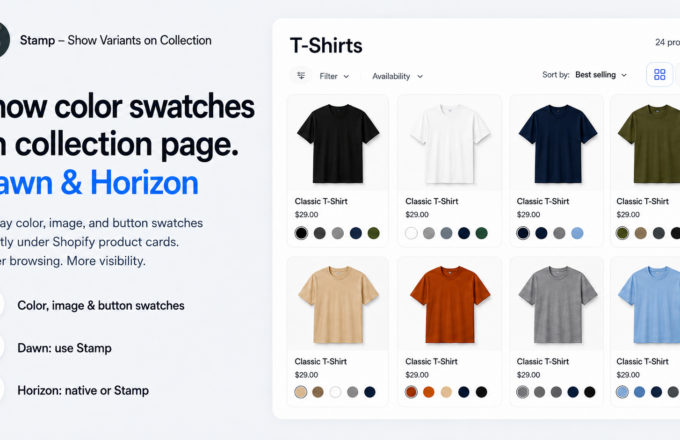
They don’t spend long on a collection page. Shoppers who do land on your store are scanning dozens of deals at once. If your collection grid shows one card per product, the colour, size or price they came for is hidden behind a click. Most won’t click.
This guide covers both problems with two Shopify apps: Octolift gets your products recommended by AI shopping assistants, and Stamp Show Variants Collection puts every variant on your collection pages. Set both up before November and you’ll get more traffic during BFCM and turn more of it into sales.
Part 1: get recommended by AI shopping assistants with Octolift
During BFCM, a single AI answer can send buyers straight to a product page. Octolift looks at your products the way AI agents do. It scores each one for AI visibility and tells you exactly what’s holding it back.

Watch: Octolift in action on YouTube
1. See where you stand in AI answers
Assistants recommend products whose data they can read and trust: clear titles, full descriptions, specs, variants, policies and reviews. Octolift checks all of this and gives every product an AI visibility score, so you know which listings are ready for BFCM and which aren’t.

2. Fix your hero products in bulk
Start with the products you’re putting on sale. Octolift suggests better titles, descriptions and specs, and lets you apply the fixes with AI in one click, in bulk if you like. Then rescan to confirm the score went up. Every change can be undone for 30 days, so it’s safe to try before the holiday rush.

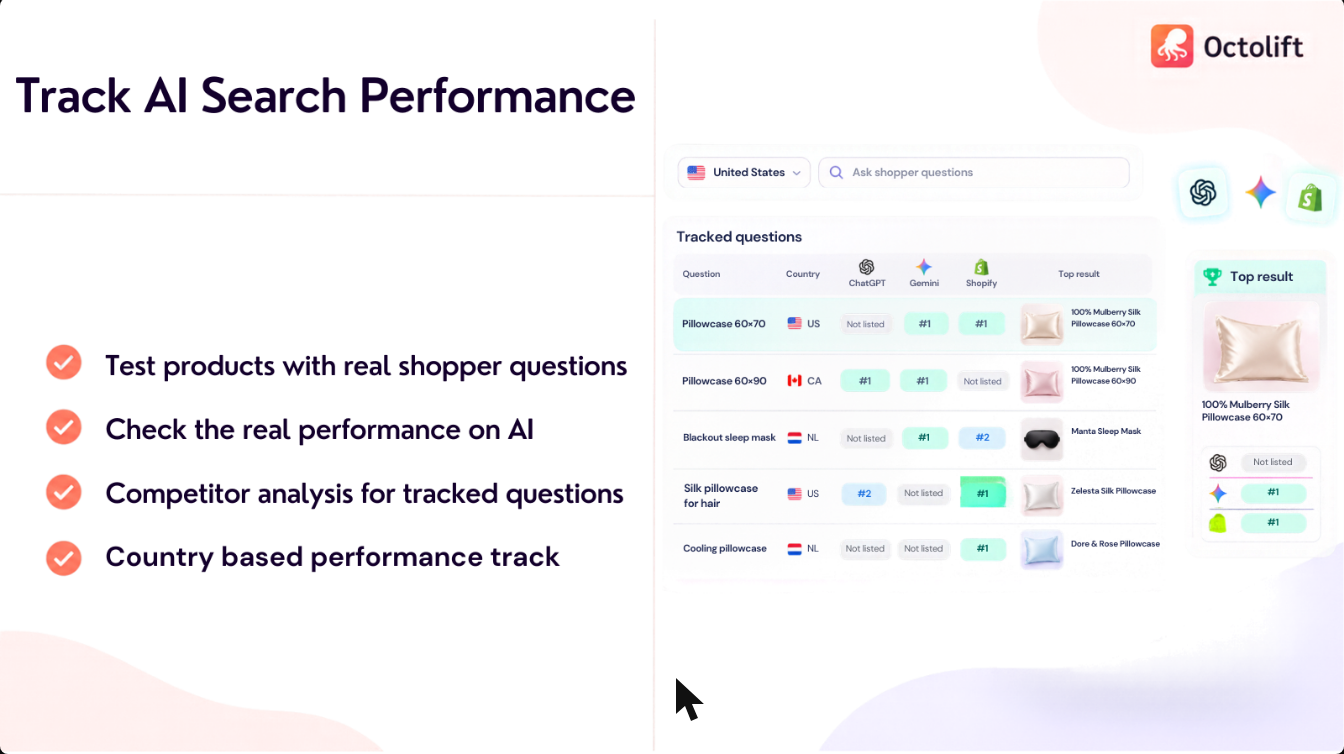
3. Track the questions your buyers ask
Add the questions BFCM shoppers really ask, like “best gift for a runner under $50” or “most comfortable wool socks”. Octolift asks ChatGPT, Gemini and other assistants each week and shows whether your products get recommended. You’ll know before Black Friday whether you show up.
4. Measure what AI sends you
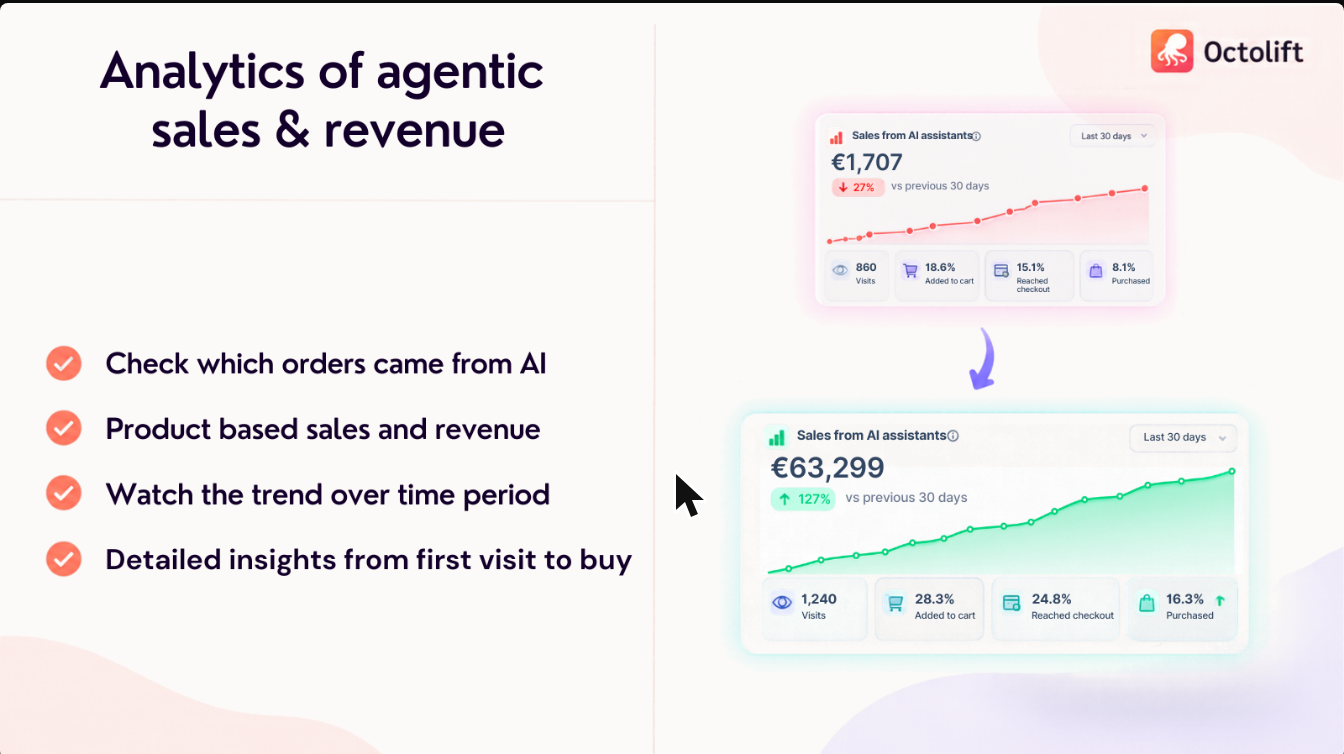
After the weekend, see the visits, orders and revenue that came from AI assistants. This tells you which products and questions to focus on for the next season.
Pricing: there’s a free plan (5 products analyzed, 5 shopper questions tracked). Paid plans start at $29 a month for 100 products, with weekly re-checks in ChatGPT, Gemini and other assistants. Install Octolift
Part 2: show every variant on your collection pages with Stamp
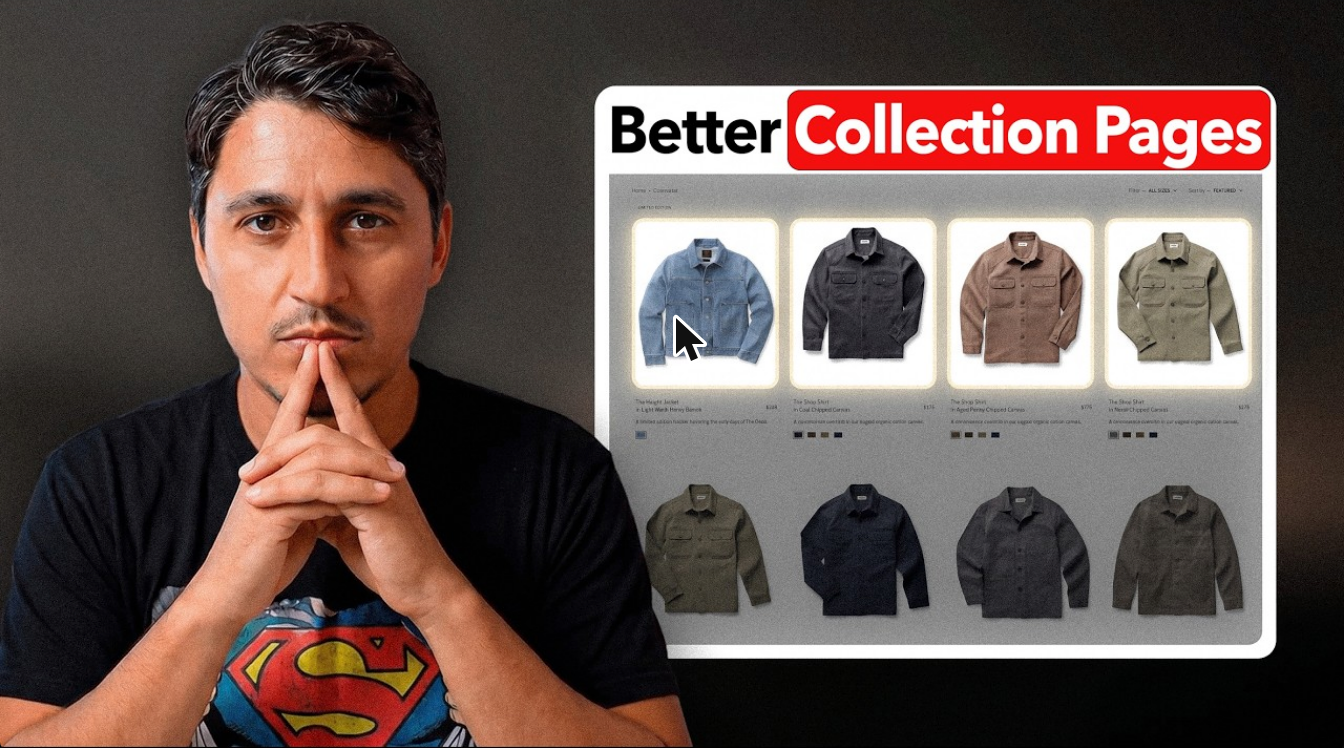
By default, a Shopify collection page shows one card per product. A jacket in six colours gets one tile, one image and one price, and the other five colours stay hidden until someone clicks. During BFCM, every hidden colourway is a discount nobody sees. Stamp Show Variants Collection gives each variant its own card, with its own image, price and link. It’s rated 5.0 from 183 reviews and has the Built for Shopify badge.
Watch: Stamp in action on YouTube

Why not just duplicate products?
As Sezerium’s guide explains, splitting one product into six real products causes lasting problems. Your inventory, reviews and analytics get spread across six records. You end up with six near-identical pages competing in search. And every price change has to be made six times, which is the last thing you want during a sale. Stamp changes only what the collection grid shows. Your product, its reviews and its stock all stay in one place.
| Approach | Catalogue stays intact | Survives theme updates | Reversible in one click | Setup time |
|---|---|---|---|---|
| Duplicate products | No | Yes | No | Days |
| Edit the theme | Yes | No | No | Days |
| Stamp (split at display time) | Yes | Yes | Yes | Minutes |
Five-minute setup, on any theme
Stamp runs as an app embed, so the setup is the same on Dawn, Horizon, Impulse or any other theme:
- Turn on Show variants separately in the dashboard.
- Pick a collection. Start with your biggest BFCM collection, for example the one with the most colours.
- Pick a theme. On a live store, duplicate your theme first and preview the change on the copy.
- Choose which option to split by. Color suits most apparel; Size suits candles, coffee and similar products.
- In the theme editor, open App embeds, turn on Variants on Collection and save.
BFCM settings that matter
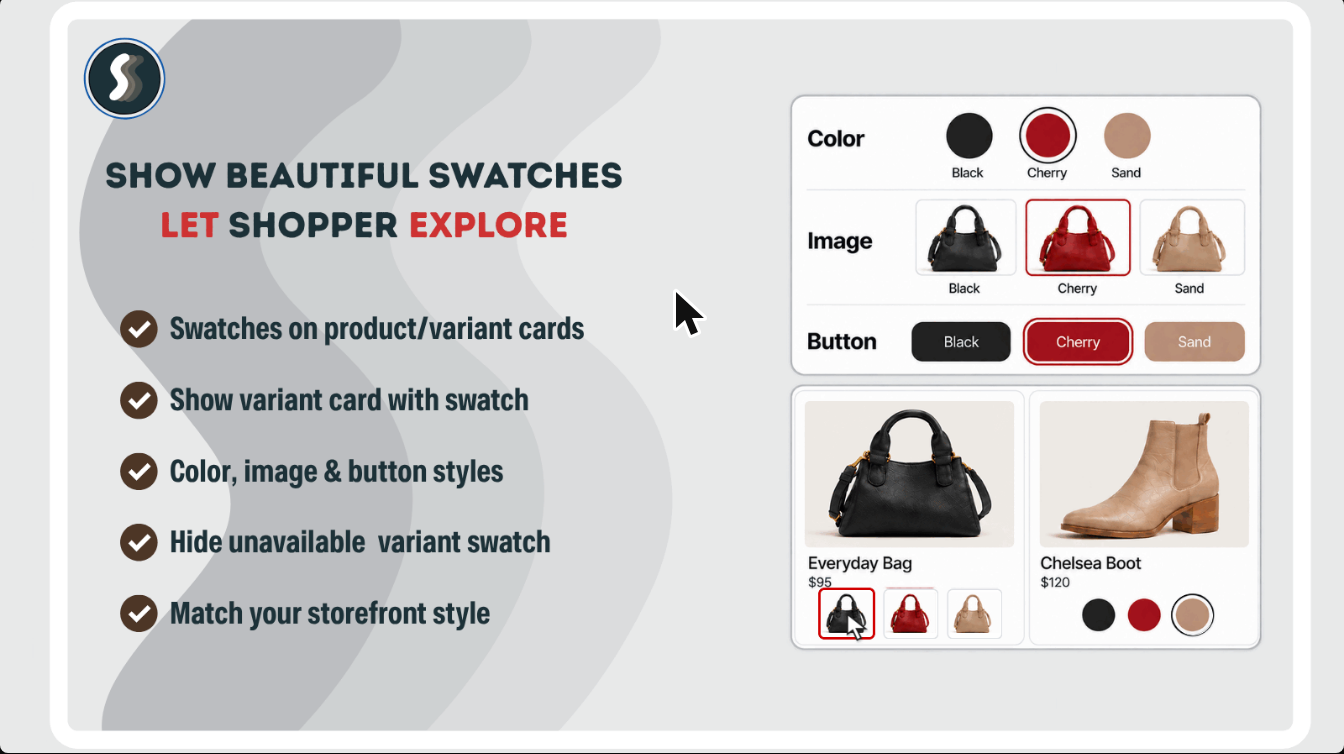
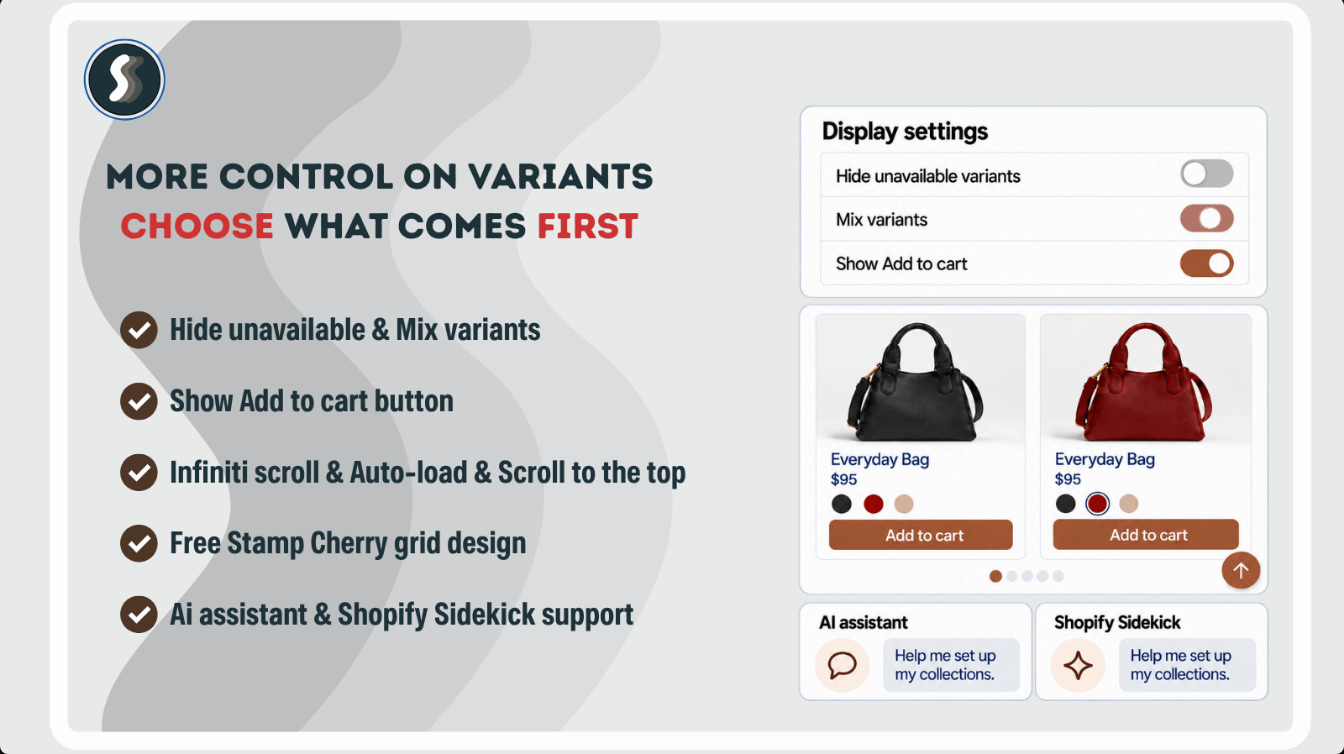
- Swatches on every card. Show colour dots or size buttons so shoppers see what’s still in stock without clicking.
- Sale collection rules. With per-collection settings, your Sale collection can show only discounted variants, split by colour, with out-of-stock items hidden. Your other collections stay as they are.
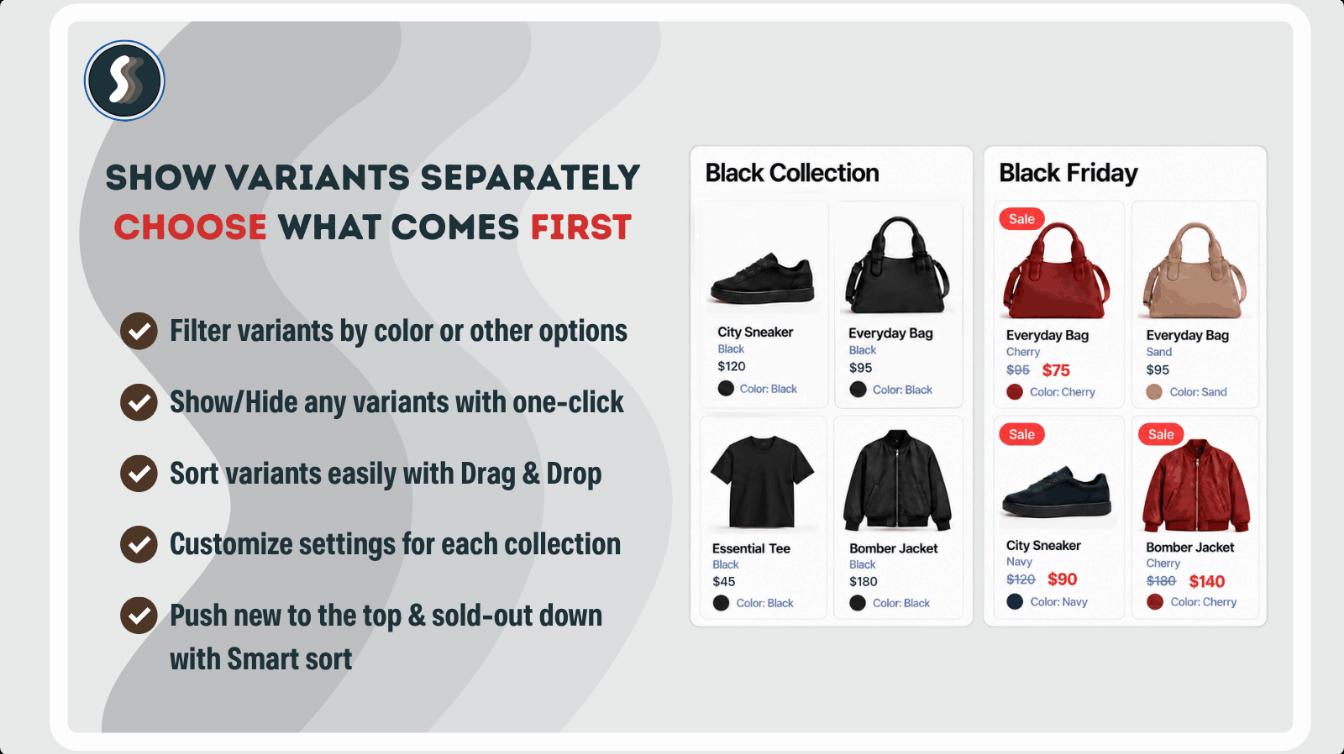
- Smart sort by sales. Rank variants by their own sales, push sold-out items down and bring new arrivals to the top. Your best-selling colourway gets the top spot.
- Clean grid. Turn on Hide products/variants without images and Hide out of stock before the traffic arrives. Use Mix variants so one product doesn’t fill a whole row.
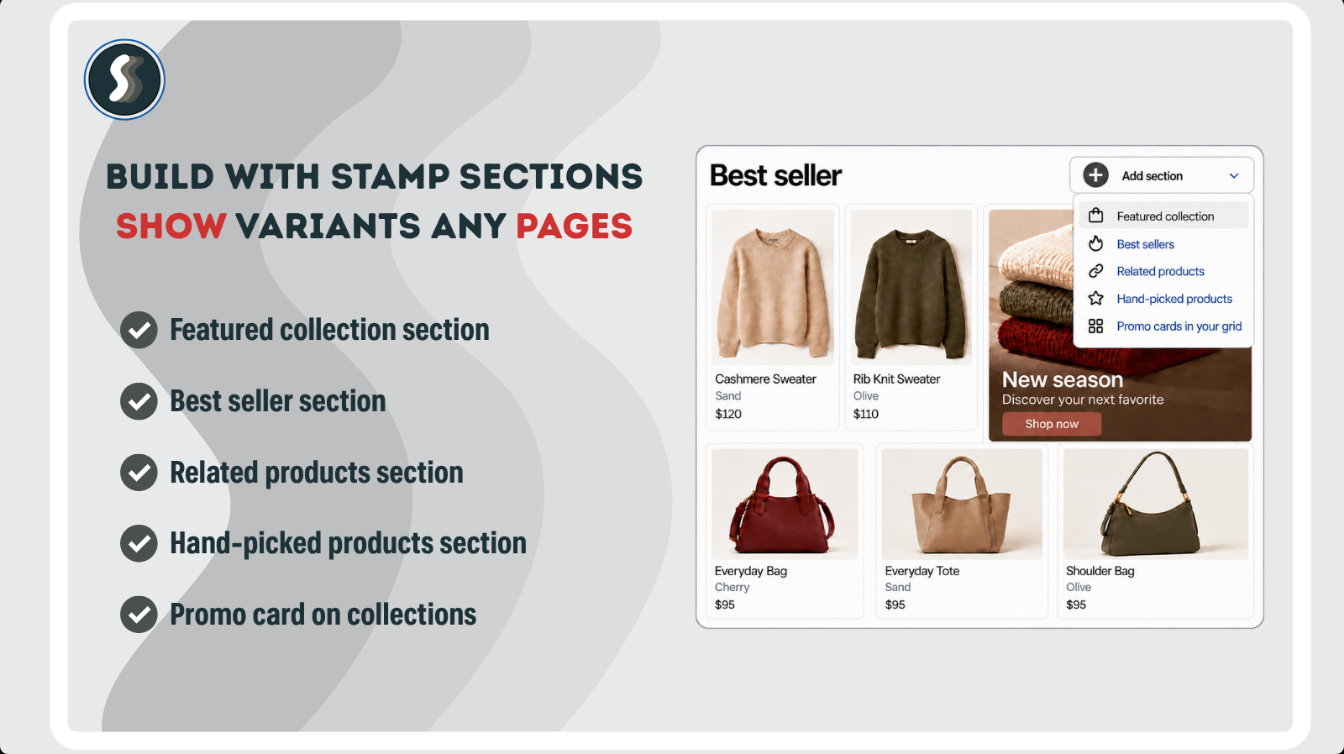
- Promo cards and sections. Add a promo card to the collection grid for your BFCM offer, and use best-seller or featured-collection sections on the homepage.
Pricing: the free Build plan lets you set everything up before launch. Standard is $12 a month and Advanced (swatches, smart sort, promo cards) is $24 a month, both with a 3-day free trial. Install Stamp
Your BFCM checklist
AI assistants take time to pick up changes to your listings, so the Octolift work comes first. Stamp only takes minutes, but test it on a copy of your theme well before the traffic arrives.
Now to October 31: get your listings ready for AI
- Install Octolift and scan the products you’ll put on sale.
- Fix the lowest-scoring hero products, then rescan to confirm the score went up.
- Add 5 to 10 buyer questions you want to be recommended for.
November 1 to 14: build the collection pages
- Install Stamp and split your main BFCM collections by Color or Size on a theme copy.
- Turn on swatches, hide variants without images, and hide out-of-stock variants.
- Set up the Sale collection to show only discounted variants, and add a promo card.
November 15 to 26: check and go live
- Check Octolift’s weekly AI results for your tracked questions and fix any product that’s still missing.
- Run Stamp’s smart sort so the best-selling variants are at the top.
- Publish the theme copy and check a few collection pages on mobile.
November 27 to 30: Black Friday to Cyber Monday
- Watch which variants sell out; sold-out items move down the grid automatically.
- Keep an eye on visits and orders from AI assistants in Octolift.
December: review
- Compare AI-referred revenue with last year, and note which questions and products did best for next season.
Get found and get the sale
This BFCM, sales depend on two moments: when an assistant decides which products to recommend, and when a shopper scans your collection page. Octolift helps you get recommended. Stamp makes sure shoppers see the exact colour and size they want once they arrive. Both apps have a free plan, so you can set everything up before you pay anything.
- Install Octolift: get your products recommended by AI shopping assistants.
- Install Stamp Show Variants Collection: show every variant on your collection pages.
- Want the full Stamp setup, theme by theme? Read How to show variants on collection page in Shopify.
Sources
- Octolift on the Shopify App Store (listing images, video and pricing)
- Stamp Show Variants Collection on the Shopify App Store (listing images, video, pricing and rating)
- Sezerium: How to show variants on collection page in Shopify