Table of Contents
We’ve just shipped one of the most-requested feature upgrades for Stamp — 4 brand-new app sections that give merchants full control over how products and variants are displayed across their entire storefront. Whether you’re highlighting your top sellers, curating a featured collection, or personalizing the shopping experience — it’s all now possible, right inside Stamp.
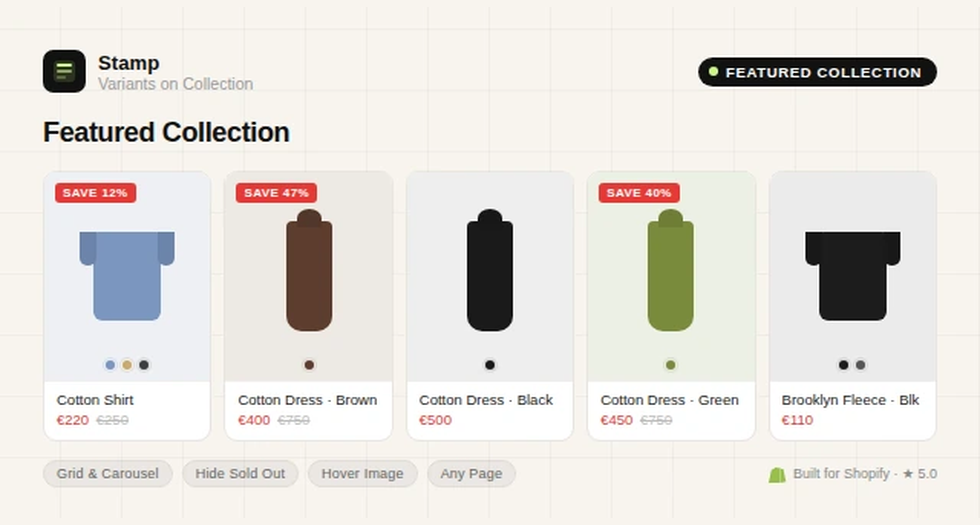
These sections can be added to your homepage, collection pages, product pages, static pages, and even the cart page. Display as a grid or carousel, show variant swatches, hide sold-out variants, and switch to the second product image on hover — all with rich, intuitive settings.
1. Best Sellers Section
Surface your top-performing products where shoppers are most likely to act. The Best Sellers section lets you automatically pull in your highest-selling products and display them with full variant support — so customers see exactly what’s available without jumping into the product page.
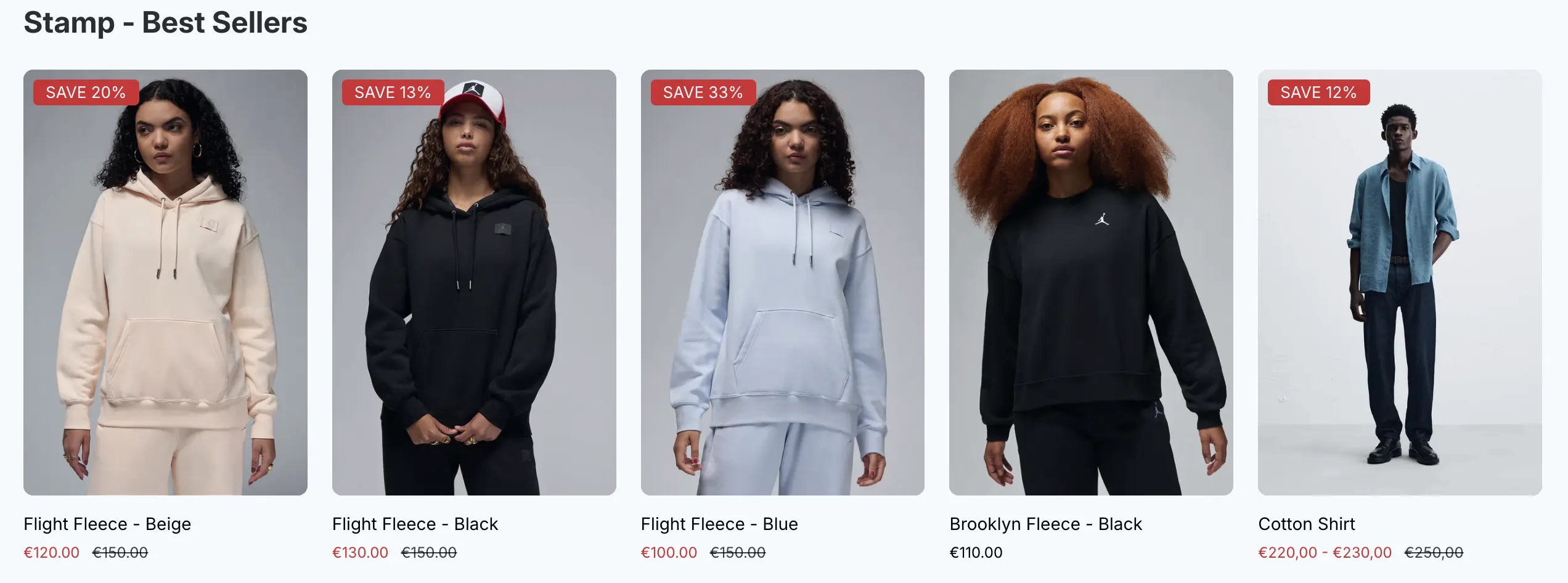
You can configure it to show as a sleek carousel or a structured grid, hide sold-out variants to keep the display clean, and enable second-image hover for a more dynamic feel. It’s a great fit for homepages and collection pages where social proof matters most.
2. Featured Collection Section
Showcase any collection you choose — seasonal picks, new arrivals, a sale lineup — with complete control over how it looks and behaves. The Featured Collection section lets you select a specific collection and render it exactly the way you want: grid or carousel, with variant display, sold-out filtering, and hover image switching.
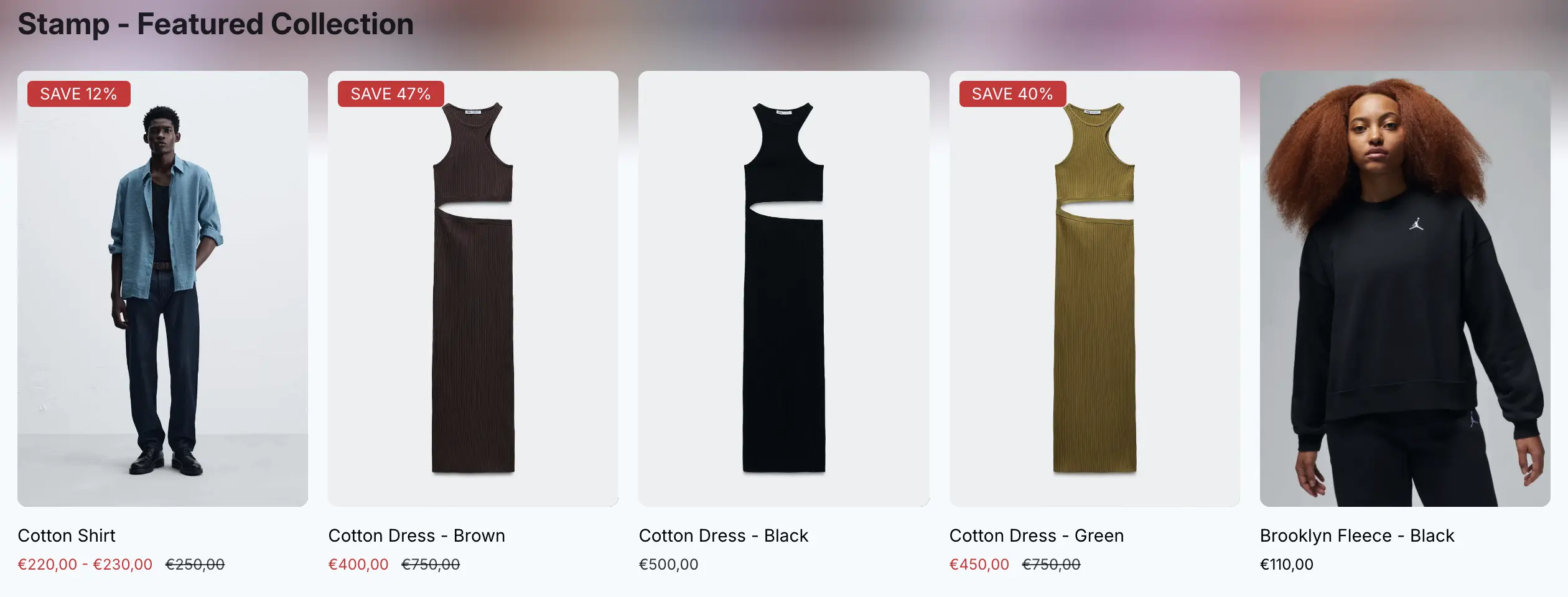
It fits naturally into product pages and static pages too, making it easy to cross-sell or guide shoppers to related categories without leaving the page they’re on.
3. Hand-Picked Products Section
Sometimes you know exactly which products deserve the spotlight. The Hand-Picked Products section lets you manually curate a list — no rules, no automation — and present them with the same rich variant and display settings as the other sections.
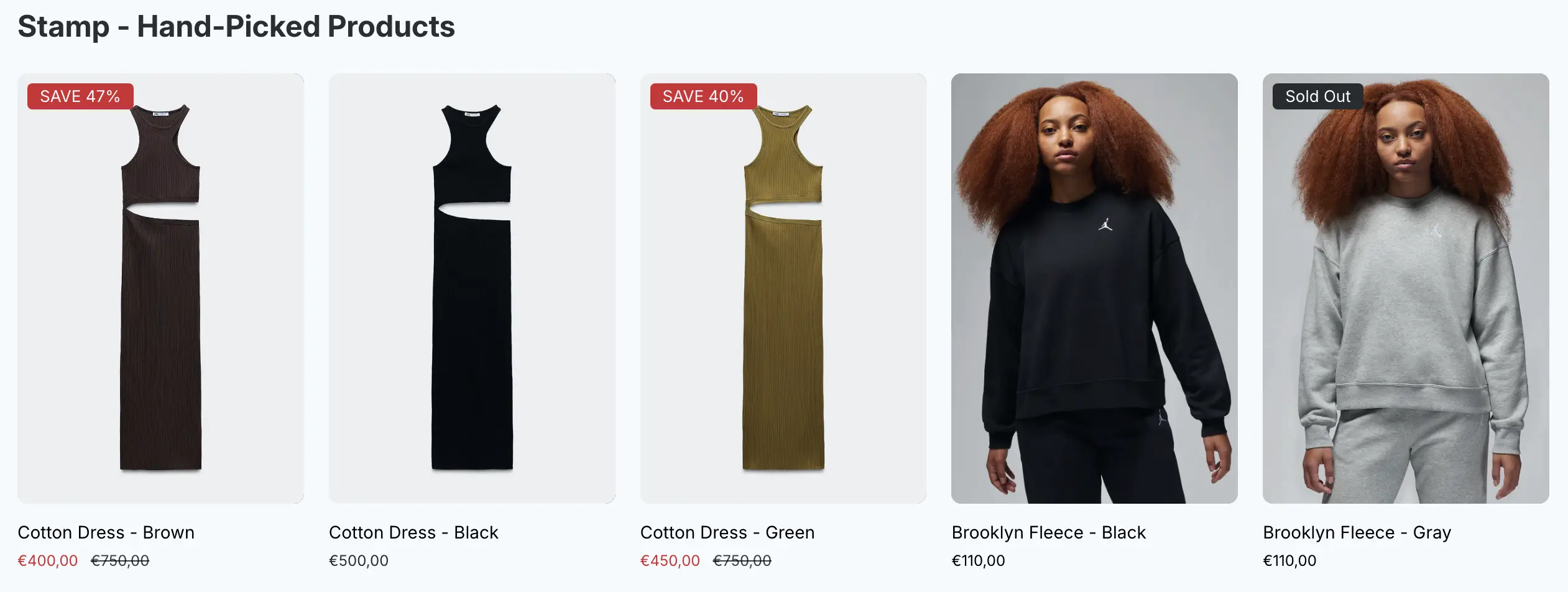
Perfect for editorial moments: gift guides, staff picks, campaign highlights, or featuring products that your algorithm wouldn’t surface on its own. Works on any page type, including the cart page — a great last-minute upsell opportunity.
4. Recommendation Section
Give shoppers a smarter browsing experience with a dynamic recommendation section. Based on the context of the page, it surfaces relevant products and presents them with variant-level detail so customers can immediately see colors, sizes, or styles without an extra click.
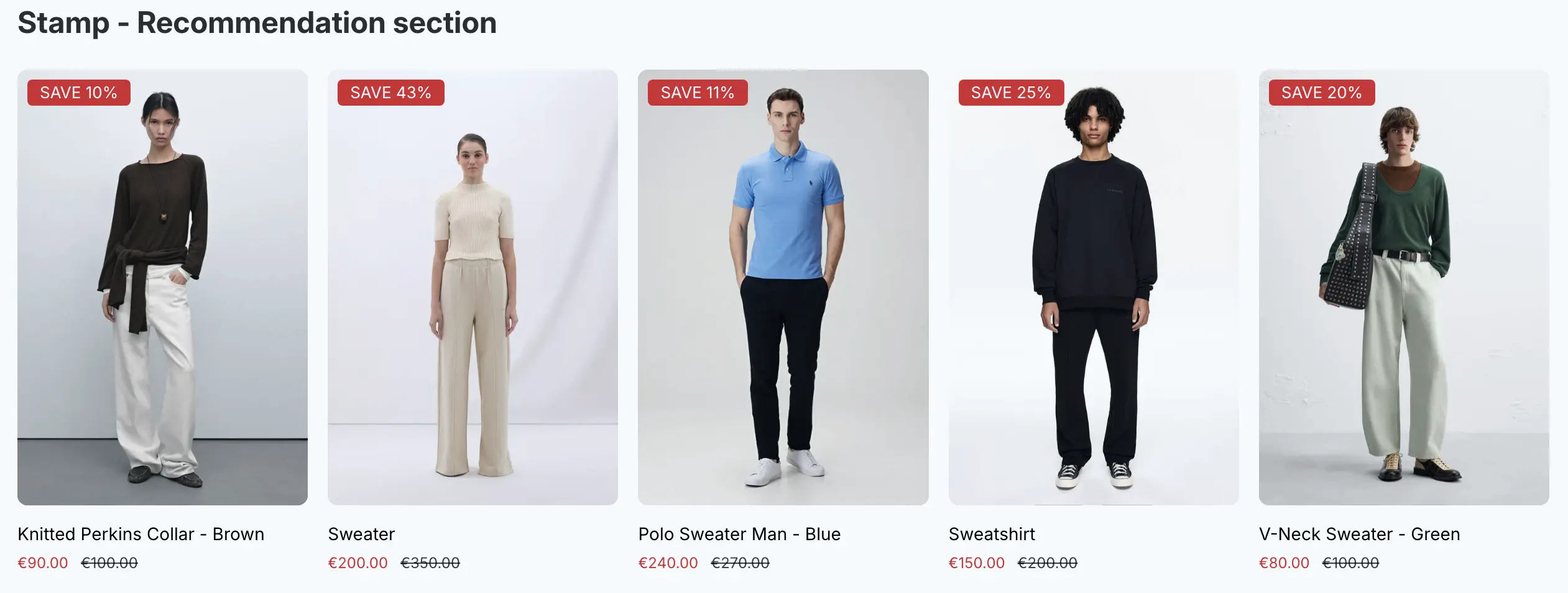
This section is especially powerful on product pages and the cart page, where a well-placed recommendation can meaningfully increase average order value. Like all other sections, it supports grid/carousel layout, sold-out hiding, and hover image effects.
Rich Settings Across All Sections
Every one of the four sections shares a consistent, powerful settings panel:
| Grid or Carousel — choose the layout that fits your store’s design Show Variants — display product variants as individual items Hide Sold Out — automatically remove unavailable variants from display Second Image on Hover — show the alternate product photo when a customer hovers Page Placement — homepage, collection, product, static page, or cart page These settings give you the flexibility to match each section to your brand, your theme, and your customers’ expectations. | 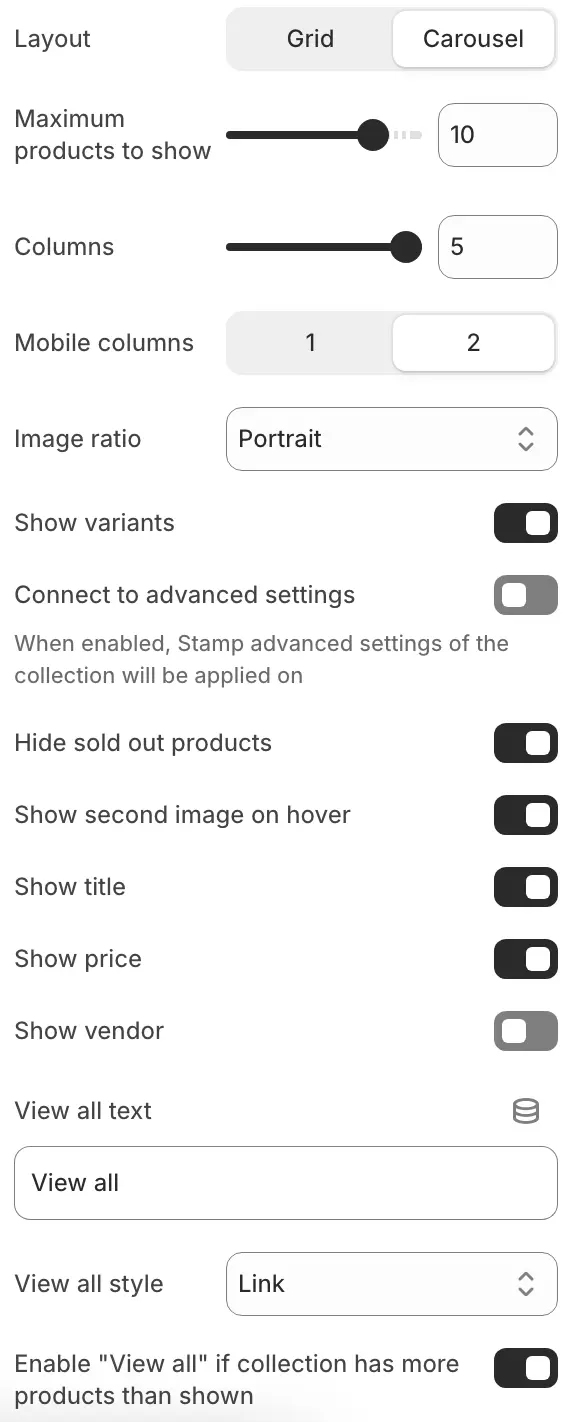 |
All four sections are available now inside Stamp. If you’re already using the app, head to your theme editor to start adding them. If you’re new — install Stamp from the Shopify App Store and try it free.