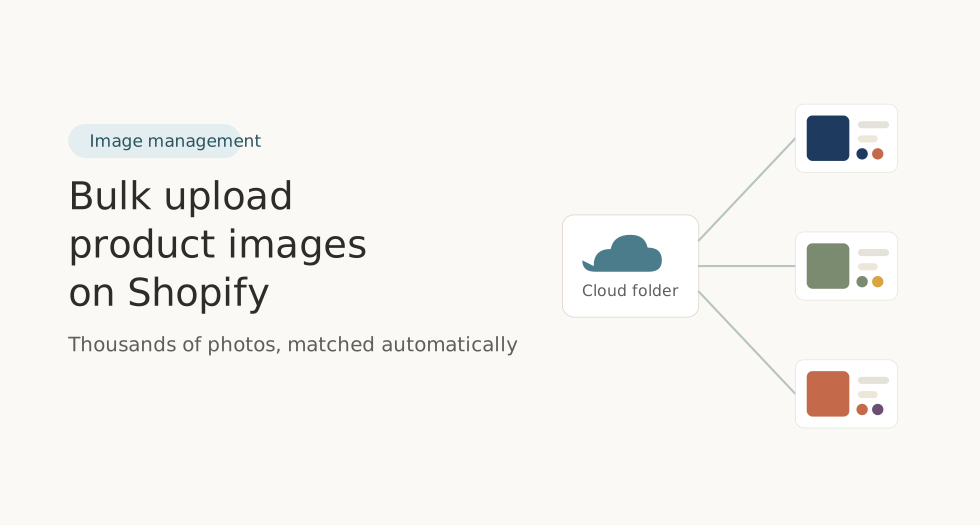
Growing a Shopify catalog is a good problem to have, right up until it’s time to add the photos. Fifty products is manageable. Five hundred is a long afternoon. Five thousand is the kind of task that quietly eats a whole week, one drag-and-drop at a time.
At Sezerium, we spend our days helping merchants make their collection pages convert, so we know how much of that work is really just image handling behind the scenes. That’s why we point store owners toward tools built by people we trust. For bulk image work, that’s our partner Craftshift and their app Smart Bulk Image Upload. This guide walks through how it works, start to finish.
Table of Contents
Getting the app installed
Head to the Shopify App Store, search for Smart Bulk Image Upload, and hit install. Once it’s added, you’ll find it in your admin under the Apps section. Open it up and you’re ready to connect your files.
Step 1: Link your cloud storage
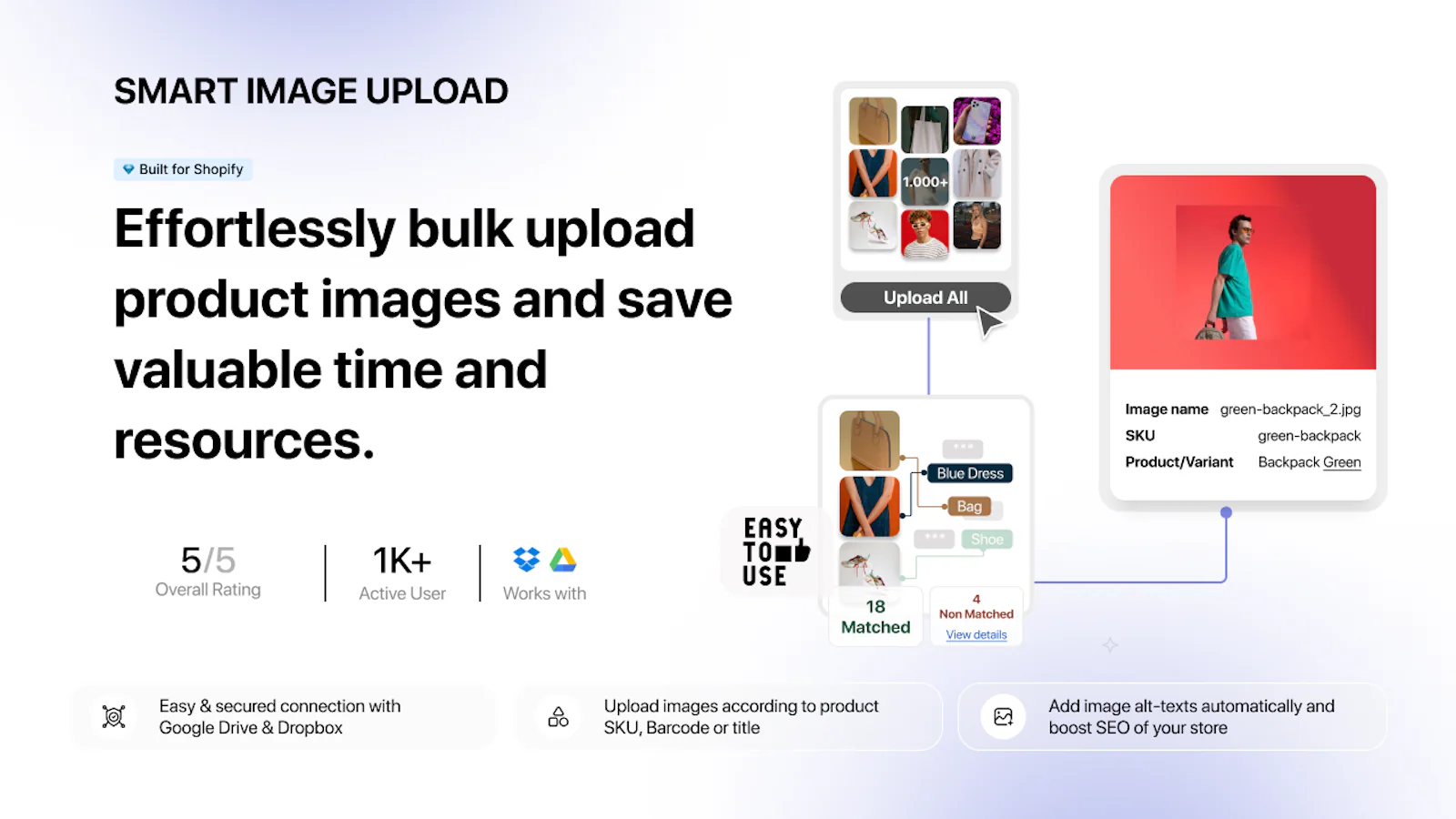
Rather than pushing images one folder at a time, the app pulls them straight from where you already keep them. Two providers are supported:
- Google Drive
- Dropbox
To hook it up, open the dashboard and click Connect. Google Drive is selected by default, but you can switch to Dropbox in the settings if that’s where your files live. Authenticate, grant folder access, and your cloud folders show up right inside the app, ready to select in bulk.
One thing worth knowing: if you’re sitting on a mountain of folders and only want the app to look inside the subfolders of one specific parent, reach out to Craftshift support. They can set up a customization that fetches just that folder’s subfolders instead of everything.
Step 2: Name your files so they match themselves
The whole system runs on filenames. Stick to a consistent naming pattern and the app does the pairing for you. A few formats that work well:
SKU123_1.jpg— add_1,_2and so on after your identifier to set image order (main shot, alternate angle, lifestyle photo, etc.)product-title-main_1.jpg— underscores plus numbers control the sequence images appear inbarcode123456789_1.jpg— the app reads the underscore and trailing number to place each image automatically
The rule of thumb: sort your images into folders by product, and keep filenames short and clear. As long as each name carries the SKU, barcode, title, or metafield you want to match on, the app takes it from there.
Step 3: Pick how images get matched
This is where the app really earns its place. You get twelve matching modes, so you can auto-pair photos with the right product or variant no matter how your files are named. They fall into four groups.
Matching by SKU
- Exact SKU — the filename matches the SKU exactly, like
ABC123_1.jpg,ABC123_2.jpgfor a product whose SKU is ABC123. The_1,_2sets which image comes first. - Image contains SKU — the SKU sits somewhere inside the filename, like
product_ABC123_view1_1.jpg. Trailing numbers still control order. - SKU contains image name — the image name is a piece of the SKU, like
shirt123_1.jpgpairing with SKUnewshirt123. Add position numbers if sequence matters.
A quick checklist for SKU matching: write the SKU exactly as it appears in Shopify, use an underscore to split the SKU from the position number, and remember those numbers decide which shot is primary. A clean set looks like SKU001_1.jpg (main), SKU001_2.jpg (back), SKU001_3.jpg (close-up).
Matching by barcode
- Exact Barcode — the filename matches the barcode exactly, like
0123456789.jpg. - Image contains Barcode — the barcode appears inside a longer name, like
promo_0123456789.jpg. - Barcode contains image name — the image name is part of the barcode, like
blue1.jpgmatching a product with barcodeblue123456789.
Matching by product title
- Exact Title — the filename matches the title word for word, so “Classic Red Tee” pairs with
Classic Red Tee.jpg. - Image contains Title — the title sits inside the filename, like
Classic Red Tee front.jpg. - Title contains image name — the image name is buried in the title, like
denim.jpgmatching “Stretch Fit Denim Jeans”.
Matching by metafield
- Exact Metafield — the filename matches a product or variant metafield value exactly, like
vendorCode123_1.jpg. - Image contains Metafield — the value appears anywhere in the name, like
product_vendorCode123_alt_1.jpg. - Metafield contains image name — the image name is part of the value, like
golden_1.jpgmatching metafieldgolden_variant_2024.
If metafields are new to you, here’s the short version. In your Shopify admin, go to Settings, then Custom Data, then Products (or Variants, if you’d rather match at variant level). Click Add Definition and set up a metafield with a name, namespace, key, and content type. Fill in the values for your products, then tell the app which namespace and key to match on in its settings. You can use underscores and numbers here for ordering too, exactly like the other modes. As a bonus, cleaner metafields also tidy up your product data and give your SEO a small nudge.
Step 4: Preview before you commit
Don’t upload blind. Hit Preview Match and the app shows you exactly which images landed on which products. Spot a wrong pairing? Unmatch it. Need to nudge something by hand? You can, though most of the time you won’t need to.
Smart matching is good, but it can only work with what you give it. Mismatches usually trace back to one of these:
- A typo in the filename, like
abcD123.jpgwhen the SKU isabc123— that extra letter breaks the match. - A filename with no recognizable identifier at all, which just stays unmatched.
- Two products sharing the same SKU or barcode, which can send one image to both by accident.
- The wrong metafield namespace or key in the settings, which quietly kills metafield matching.
The preview step exists precisely so you catch all of this before anything goes live.
Step 5: Run the upload
Happy with the preview? Click Start Upload. The app processes every image according to the mode you chose and assigns them where they belong. A live progress bar tracks successes and failures as it goes, so you’re never guessing whether it worked.
A small habit that pays off: run batch uploads regularly rather than letting images pile up. It keeps your storefront looking current without ever becoming a big project again.
Step 6: Tidy up and refine
Once everything’s uploaded, do a little housekeeping. Clear out duplicate or unused images from your cloud storage, and adjust your naming habits based on what matched cleanly and what didn’t. Each round gets smoother than the last.
In our experience at Sezerium, this app pulls its weight most in a few specific situations:
- Brand-new stores that need every product photographed and live at once. A boutique launching its first lookbook can get the whole seasonal catalog up in minutes instead of days.
- Seasonal swaps, where a big chunk of imagery changes over quickly — think a home decor shop flipping from a holiday range to a spring one overnight.
- Frequent campaigns, like flash sales or promotional pushes where product shots and banners need refreshing on a deadline.
The bottom line
Bulk image upload doesn’t have to be the bottleneck it usually is. With Smart Bulk Image Upload, a task that once ate hours becomes something you barely think about, and the time you get back goes toward the parts of your store that actually move the needle.
That’s why we’re glad to recommend Craftshift’s work to the merchants we help at Sezerium. Fewer hours lost to file handling, more attention on selling.